Open localhost from your phone with Thumbdesk
Preview a dev server running on your computer from your phone. Choose the host and port in Thumbdesk, expose it to the app and troubleshoot access.

Founder, Thumbdesk · 3 min read
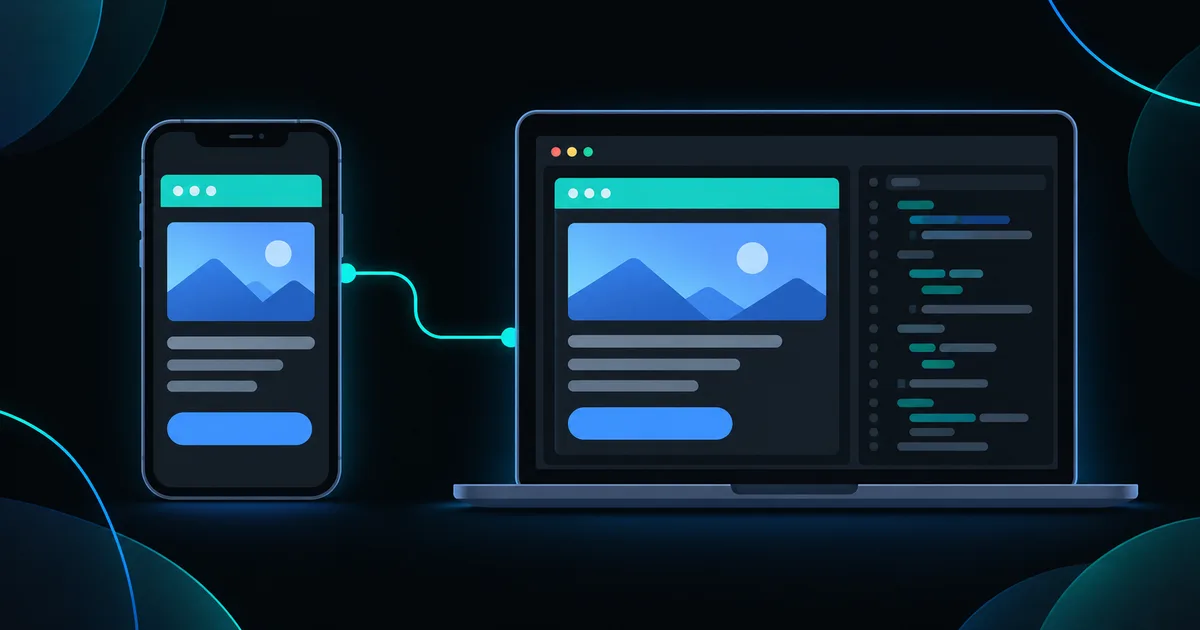
Interactive example
Open the sample dev server
Use the project's file editor, terminal, Git and web preview. The storefront is sample data running entirely in this page.
Tap the globe, choose port 5173, then try the checkout.
Open Web Preview with the globe and choose port 5173. Switch back to cart.ts to edit its heading or price, save, then return to the preview.
Edits appear under Git → Changes. Open the preview after saving to check the result.
Sample data only. You can use the controls yourself; automatic playback pauses when you interact. The steps below also work as a text guide.
TL;DR: Thumbdesk can open a web preview of a development server running on your paired computer. Start the server on that computer, open Web preview in the app, then select its host and port. The app carries the requests over the host connection, so you can check a page while away from your desk without publishing it at a public URL. We build Thumbdesk; this guide covers the setup and the checks to make when a preview does not load.
Open localhost from your phone#
An address such as localhost:5173 refers to the device opening it. Typing it into the phone's ordinary browser points at the phone itself. Thumbdesk's Web preview connects to the selected computer instead.
You need a paired agent host, a running dev server and an available host connection. The preview feature is for agent hosts; adding an ordinary SSH host does not give it this preview connection.
Start the development server#
Open a terminal on the host and use the project's usual development command. For example, a Vite project might have:
npm run devRead the port printed by the server. It may be 5173, 3000 or something else, and can change if the preferred port is busy. Confirm the page opens on that computer before trying the phone.
Keep the server process running. A terminal managed by the Thumbdesk agent can keep it running through a phone disconnect, but a host reboot or an explicit stop ends that process.
Open the preview in Thumbdesk#
- Open the project and choose Open Web Preview, or add a Web preview tab to a workspace.
- Select the host that is running the server.
- Choose the detected HTTP server, or enter the actual port and a path such as
/. - If the port needs exposing, use the app's expose action and retry.
On a host where you manage the allowance from the CLI, the corresponding command is:
thumbdesk expose 5173 --ephemeralThis allows access through Thumbdesk; it does not publish the server at a public web address. An ephemeral allowance ends when the daemon restarts. If the app reports that the host agent is too old for in-app expose, update it or follow the command shown in that message.
Try the page and check the result#
Navigate the preview and inspect the page at phone size. If an agent changed a form or layout, review the source and git diff as well. A visual result and a code review answer different questions.
The interactive example above uses a sample storefront. Open the globe picker and select port 5173, then use the file editor to change a heading or price. Its simulated reload demonstrates the workflow; it does not establish hot-reload, WebSocket or form compatibility for every real application. Check those behaviours with your project's server and installed app version. Refresh the preview when you need to confirm the latest page.
When the preview does not load#
| What you see | Check |
|---|---|
| No dev servers detected | Confirm the process is running and try the port printed by its startup command |
| Port is not exposed | Expose that port in the app or with the command in the error message |
| Nothing answered before timeout | Confirm the selected host, port and path; try the page locally on the host |
| Host is offline | Reconnect the machine and its Thumbdesk agent before retrying |
| Page loads but one interaction fails | Check the host's server logs and whether the feature relies on unsupported browser or transport behaviour |
Use the Git guide to review and commit a change after checking the preview. For the broader task, follow fixing a bug from your phone.