Set up Mac screen sharing and control in Thumbdesk
Allow screen capture and pointer control on your Mac for Thumbdesk. Follow the app permission guide, reopen the share and test the screen controls.

Founder, Thumbdesk · 3 min read
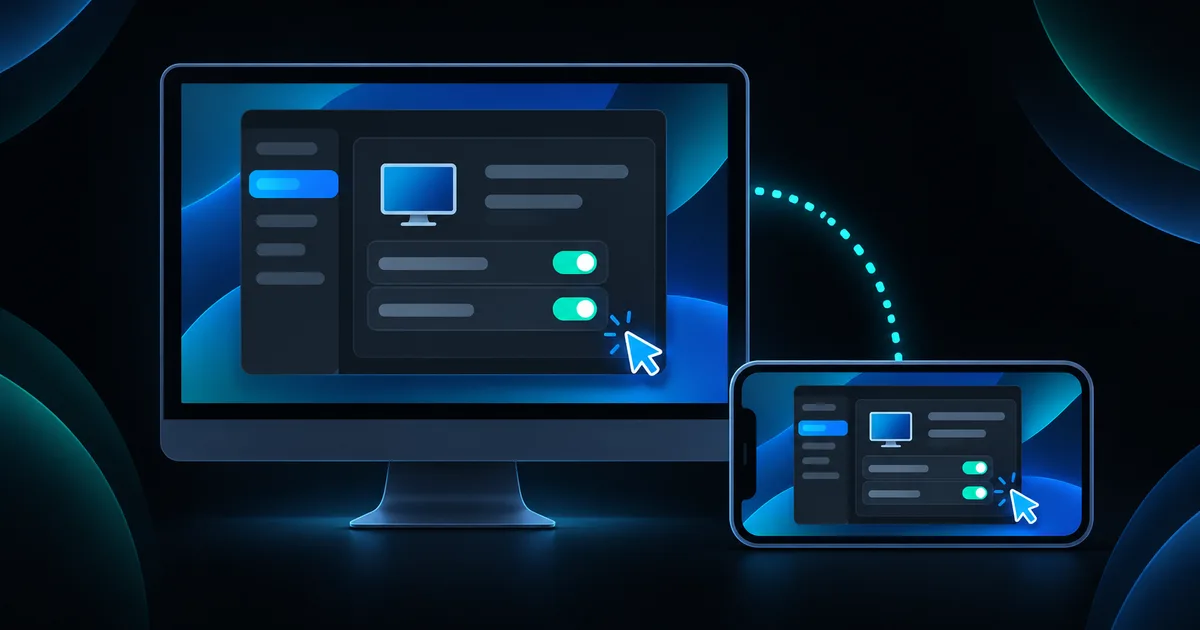
Interactive example
Try the screen controls
The simulated Mac starts connected. Grant screen and input permissions on your real computer before using these controls.
Drag to move the pointer, switch input mode, or zoom the desktop.
Drag on the screen to move the pointer, tap to click. Double-tap and drag a title bar to move a window.
Free includes 2 minutes of screen per hour, counted only while a picture is showing. Pro is unlimited.
Sample data only. You can use the controls yourself; automatic playback pauses when you interact. The steps below also work as a text guide.
TL;DR: To view and control a Mac through Thumbdesk, grant the host app permission to capture the screen and to use Accessibility for input. Pair the Mac first, open Screen from your phone and follow any permission guide while you are at the Mac. Reopen the share after changing permissions. We build Thumbdesk; this guide separates a missing picture from a view-only connection and shows how to test the controls.
Set up Mac screen sharing in Thumbdesk#
Install the supported Mac host agent from Download, pair it with the phone app and confirm the Mac is online. Keep the Mac awake and signed in with the user session you intend to access.
The interactive example above starts with a simulated, already-connected Mac. Try pointer movement, zoom and the input controls there. Your real Mac still needs the operating system permissions described below.
Allow screen capture when there is no picture#
If the app shows Allow screen recording on the Mac, use Show me how. On the Mac, open the Thumbdesk menu-bar item and choose Screen Recording: Not Allowed.
The app's guide opens System Settings at Privacy & Security, under the screen-recording control. On current macOS versions the section may be called Screen & System Audio Recording. Enable Thumbdesk for the installation that is actually running.
If macOS asks, choose Quit & Reopen. Otherwise use Restart Thumbdesk from the menu bar when the guide directs it. Return to the phone and choose Try again or reopen the screen share so the host can check the grant again.
An entry for an older installation or another application is not the same as granting the running host app. Read the name and the app's own permission status before retrying.
Allow Accessibility when the picture works but input does not#
A visible desktop confirms that capture is working. Moving its pointer or typing requires the separate input permission.
On the Mac, choose Accessibility: Not Allowed from Thumbdesk's menu bar. In System Settings, open Privacy & Security, then Accessibility, and enable Thumbdesk. Return to the phone and retry or reopen the share.
These permissions are granted on the Mac. Tapping a phone control cannot grant the host's system permission remotely.
Test the controls#
Use an ordinary, harmless desktop window first. Move the pointer, click a control and type into a text field. Then try Trackpad and Direct touch modes, zoom and display selection where applicable.
| Symptom | First check |
|---|---|
| No picture and a capture-permission guide | Screen-recording grant for the running host app |
| Picture works but pointer or typing does not | Accessibility grant and whether input is ready |
| Permission was changed but the same guide remains | Restart as directed and reopen the share |
| Mac is offline | Host power, network and agent status before screen permissions |
| Different behaviour at a locked desktop | Test the expected user/session state locally; do not assume every login state is controllable |
Free includes two minutes of screen sharing per hour across screen sessions on the phone. If the app reports that allowance is used, that is separate from a permission failure. Pro removes the screen-time allowance.
Check access before leaving the Mac#
Turn off Wi-Fi on the phone and repeat a short screen-control test over mobile data. Verify the host remains awake and its agent starts as expected after the restart behaviour you need.
Use the away-from-desk checklist for the complete readiness test. If you need a document or command rather than a desktop view, the file-transfer guide and terminal tools provide those routes directly.