Prepare your computer for remote access while you are away
Set up Thumbdesk for access away from your desk: check pairing, agent startup, sleep, screen permissions and a real connection over mobile data.

Founder, Thumbdesk · 3 min read
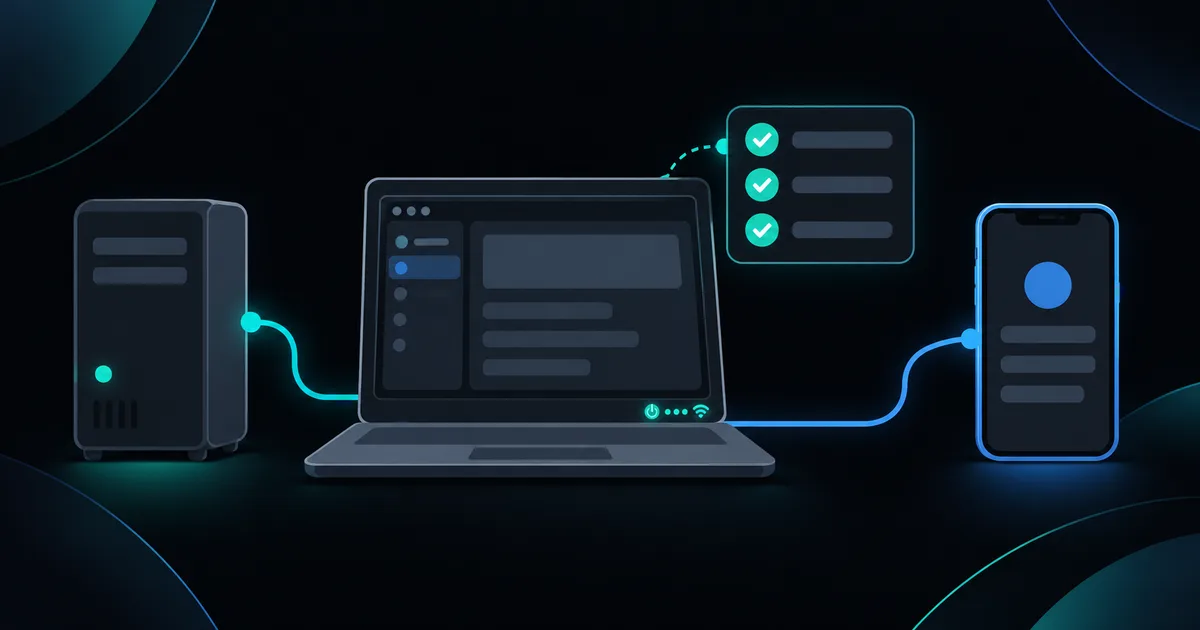
Interactive example
Explore a connection change
See direct, TURN and signaling-terminal paths in a simulation. This example does not wake or restart a computer.
Switch the phone network or host network and watch the connection indicator.
Connecting…
On the same Wi-Fi the two find each other on the local network.Setting up: phone and host swap signed connection offers and network candidates through the backend. The terminal can start on the backend relay meanwhile, and moves to the encrypted link once it is up.
Thumbdesk's servers see
- Your account email
- Host details: name, OS, agent version
- When sessions start and end
- Alert rules, push tokens, audit events
- A few numbers for alerts (CPU, memory, disk)
- Signed connection offers and network candidates (IP addresses)
and don't see
- What you type and what the terminal prints
- File contents
- Your screen
- Process lists, command lines, who is logged in
The backend is still needed to connect: it signs you in, pairs devices and passes the setup messages. No third-party audit has been done yet.
Switch the host to a strict firewall, then block P2P entirely.
Sample data only. You can use the controls yourself; automatic playback pauses when you interact. The steps below also work as a text guide.
TL;DR: Before relying on Thumbdesk away from your desk, pair the computer, confirm its agent is running and test from mobile data. Keep the machine awake and online, grant any screen permissions you need, and check its startup behaviour after a restart. A short test while you are still at the computer makes later access much more predictable. We build Thumbdesk; this checklist distinguishes a working connection from assumptions about sleep, reboot and session persistence.
Prepare your computer for remote access#
Start with one machine and the task you expect to do remotely. Terminal access, viewing a desktop and using a dev-server preview have different prerequisites. Test the tools you will actually use.
The interactive example above illustrates connection paths and network changes. It does not change your computer's power settings or prove that a sleeping machine can be reached.
Pair and confirm the agent#
Follow the host installation instructions, run thumbdesk pair on the computer and scan the QR code. Open the host from your phone and run a harmless command, such as pwd, in a terminal.
On the computer, use the status command to inspect the installation:
thumbdesk statusIf setup reports that startup persistence could not be confirmed, resolve that while you have local access. Linux service setup attempts to configure startup and user lingering, but installation can fall back to a background process. Mac and Windows startup also depend on the installation and user session.
Check sleep, power and network access#
A computer must be available to execute new commands. Configure its power settings for the unattended access you intend, accounting for whether it runs on battery or mains power. A closed laptop lid or a sleep timer can change availability.
Keep a working network connection. A paired agent handles reaching the host behind a router, but it still needs outbound network access. If a VPN, firewall or network policy is involved, test with that configuration active.
An offline badge means Thumbdesk has lost contact; it does not identify the cause by itself. The computer, network or agent may need attention before a remote command can run.
Grant screen permissions locally#
If you need desktop control, open Screen while you are at the host and complete its capture and input permissions. A Mac needs the relevant Screen Recording and Accessibility grants. Some Linux sharing paths require a local consent prompt.
Test the desktop state you will use: the expected signed-in account, display configuration and any screen lock. Terminal and files have their own access paths and do not establish that a locked desktop will be viewable or controllable.
Our Mac permissions guide walks through those specific grants.
Test from the network you will use away#
- Turn off Wi-Fi on the phone so it uses mobile data.
- Open the paired host and run a short terminal command.
- Retrieve a small file and, if needed, try the screen and preview.
- Start a harmless persistent terminal command, disconnect the phone and reconnect to that session.
- If you need access after reboot, restart the host while you are still there and confirm when the agent returns.
A phone disconnect and a host restart are different tests. Host-managed terminals can survive the former; a reboot can end running jobs and dev servers.
Keep one route for recovery#
Know how you will reach the machine locally if its network or startup configuration changes. Keep the host installation instructions available, and test one machine before applying the same setup to the rest.
If you want an offline notification, configure it in the host's Alerts sheet and check the monitoring guide. For a server that already has SSH access, compare SSH and paired-agent modes.