Move Thumbdesk to a new phone and check host access
Move to a new phone with Thumbdesk: export an encrypted device-key backup, restore it, confirm host trust and revoke the old phone when you are ready.

Founder, Thumbdesk · 3 min read
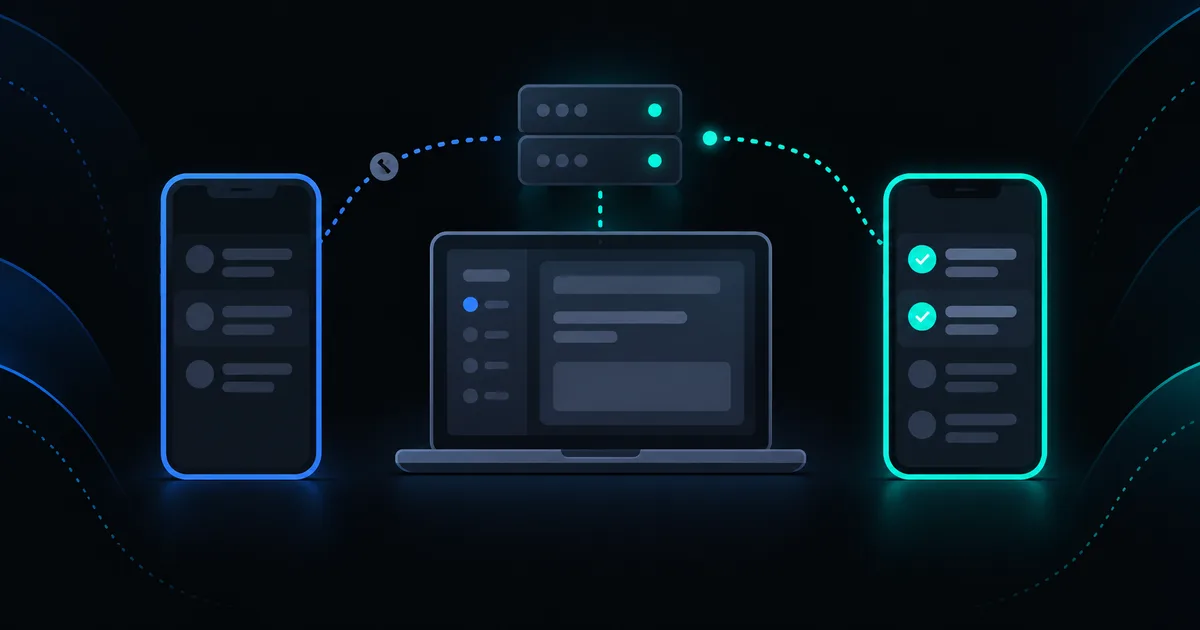
TL;DR: When moving Thumbdesk to a new phone, keep your old access available until you have signed in and tested the new device. If you use a device-key backup, export it as an encrypted file, keep its password separately and import it on the new phone. A restored key may still require approval or re-pairing on each host. We build Thumbdesk; this guide helps you check the transition before revoking the old device.
Move Thumbdesk to a new phone#
Signing into your account, restoring a device identity and being trusted by a host are related but separate steps. A successful sign-in or import alone does not prove that terminal access to every machine has been restored.
Start while you still have the old phone and local access to an important host. If the old phone has been lost, use the new-device pairing and revocation steps available to you instead of assuming a missing backup can be recreated.
Export a device-key backup if you need one#
On the old phone, open Settings and find Export Device Key in the security controls. Create the backup password and confirm it. The app requires at least eight characters; choose a strong password you can retain securely.
Export the encrypted .thumbdesk file and keep it somewhere you can access during the move. Store its password separately from the file. Check any expiry option offered by the export flow before relying on an old backup.
The app cannot recover a backup without its password. Treat the file and password as access material: do not send them to support, paste them into an agent chat or include them in a bug report.
Import on the new phone#
Install Thumbdesk on the new phone and sign in to the intended account. Open Import Device Key, enter the backup password and select the .thumbdesk file.
Read the final result. The app may report that the key was restored but that a host still needs re-pairing or device approval. It can also report a local restore with unsuccessful host-access synchronisation. Follow that result rather than treating the import as universal confirmation.
If you do not have a usable backup, pair or approve the new device using the host's supported flow. An account login does not bypass host trust.
Verify the hosts you need#
For each important host:
- Confirm it is online and that you selected the intended machine.
- Open a terminal and run a harmless command.
- Open a file or project you need, checking that the host account has the expected permissions.
- Inspect its trusted-device list when available and confirm the new phone's status.
SSH hosts use their own connection credentials. Check those separately; do not assume importing a device identity also restores every SSH password or private key.
Purchase entitlement is another separate check. If needed, use the app's purchase-restoration controls and confirm the plan shown on the new device.
Retire or revoke the old device#
Once the new phone works, review Logged in devices and the host's trusted-device controls. The account's Log out & revoke access action requires its verification flow; hosts also expose trusted-device revocation controls.
If the old phone was lost or is no longer under your control, prioritise revoking its access using the trusted device or host access you still have. Read each action's confirmation so you know which device and access it affects.
| Check | What success means |
|---|---|
| New phone signs in | Account authentication works |
| Device key imports | The encrypted backup was accepted locally |
| Host access is verified | The new phone can perform the intended operation on that host |
| Old device is revoked | The relevant account or host control has removed its access |
The security architecture explains host identity and device trust. For a computer you can reach locally, the setup guide covers pairing.