How to access your computer from your phone
Access your computer from your phone with Thumbdesk: pair the host, open its terminal or screen, retrieve files and continue coding-agent work.

Founder, Thumbdesk · 4 min read
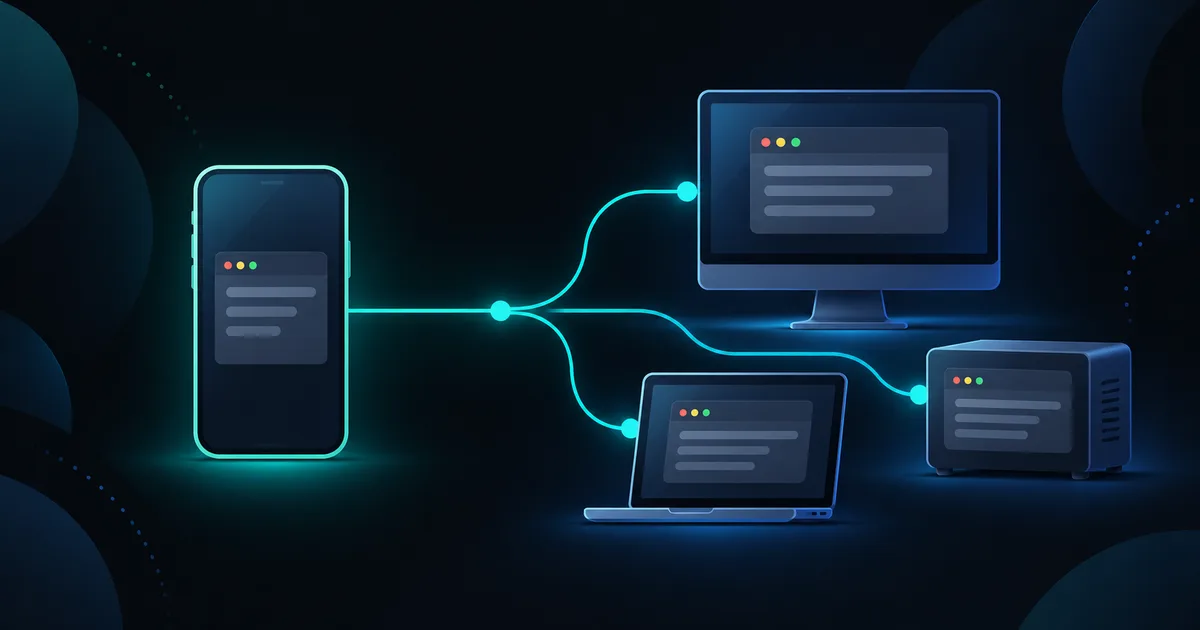
TL;DR: To access your computer from your phone, install the Thumbdesk host agent and pair it by scanning a QR code. You can then open a terminal, control the screen, retrieve a file or continue a coding conversation on that computer. The paired agent handles access behind a home router without port forwarding. We build Thumbdesk; the iOS and Android apps are free for two machines, with a limited screen-sharing allowance.
How can you access your computer from your phone?#
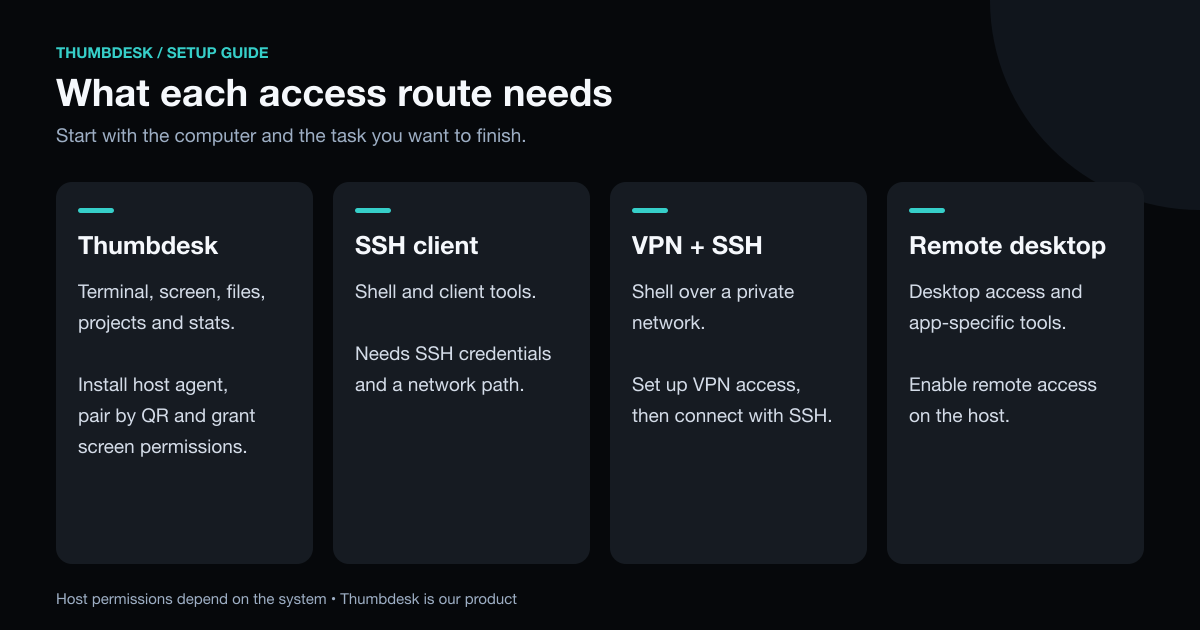
You need something running on the computer and a way for your phone to reach it. The routes differ in how much you set up and how much of the machine you get.
| Approach | What you get | What you set up |
|---|---|---|
| Thumbdesk | Terminal, screen, files, projects, stats | Install and pair the host agent; grant screen permissions |
| SSH app | A terminal and other client-specific tools | An SSH server, credentials and a reachable network address |
| VPN plus SSH | A terminal over a private network | A VPN connection and SSH access |
| Remote-desktop app | Desktop access and app-specific tools | Enable remote access on the computer |
Install and pair your computer#
- Install the app on your phone from the App Store or Google Play.
- Install the agent on the computer:
# macOS (Apple Silicon)
brew install --cask yashagldit/thumbdesk/thumbdesk

# Linux, including a 64-bit Raspberry Pi
curl -fsSL https://thumbdesk.com/install.sh | bash

# Windows (x64)
npm i -g thumbdesk- Run
thumbdesk pairand scan the QR it prints with the app.
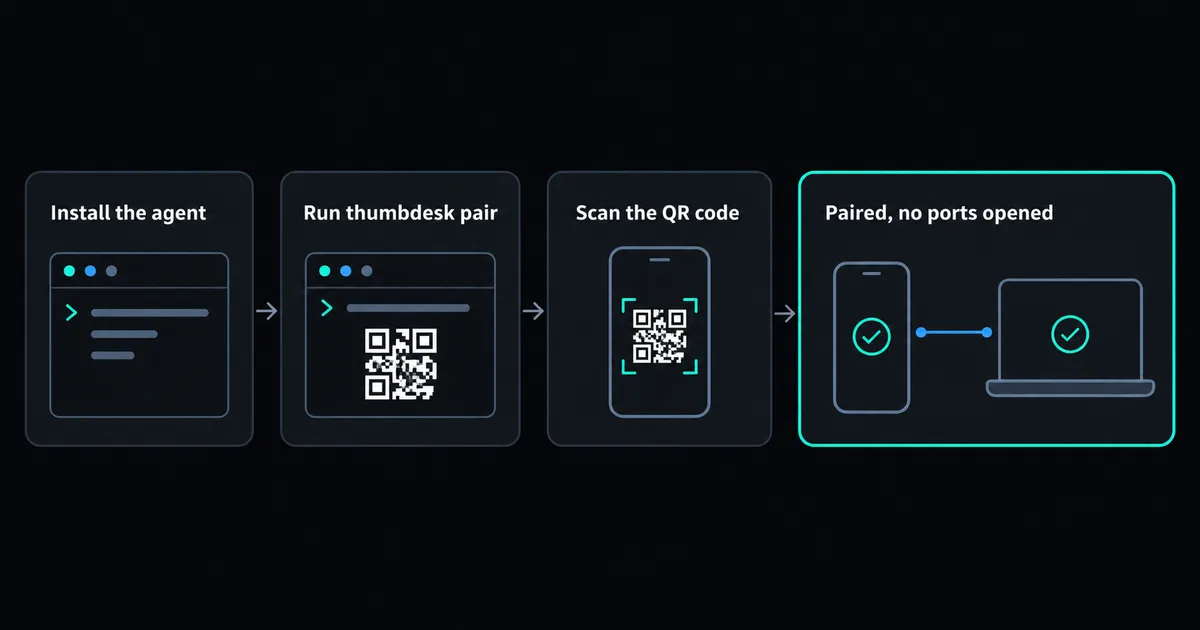
The agent makes outbound connections, so it can reach a machine behind carrier-grade NAT without opening a port on your home router. Keep the host awake, online and running its agent. For screen control, grant the operating system's capture and input permissions. Turn off Wi-Fi on the phone and try the connection over mobile data before relying on it away from home.
What can you do once you are connected?#
- Use the terminal. Sessions run on the computer, so closing the app or losing signal does not end them. Reconnect to the running session with recent output and scrollback restored. The key bar has Ctrl, Alt, Esc, Tab and arrows. Read more in how to keep a session alive on your phone.
- See and control the screen. Use the phone as a trackpad or tap right where you want to click, pinch to zoom, switch displays and turn on the machine's sound. We compare it with other apps in the best remote desktop apps for your phone.
- Move files. Follow the file-transfer walkthrough. Browse folders your host account can access, edit text files, preview images, PDFs and video, and send a photo straight from your phone to a folder on the computer.
- Work on a project. Open a repository with its code, git and a live preview of your dev server.
- Watch your machines. See live CPU, memory, disk and temperature, and get a push when something crosses a threshold or goes offline. Read how to monitor a Linux server from your phone.
- Keep an eye on coding agents. Chat with Claude Code, Codex and Grok, or resume a session in a terminal.
The host agent supports Apple Silicon Macs, Windows and Linux, including a 64-bit Raspberry Pi. Screen capture, audio and startup behaviour depend on the host system; a headless server still works for terminal, files and monitoring.
What if you have already left?#
Once a computer is paired and available, you can start these tasks from your phone:
- You forgot a file. Open the folder and send it to your phone.
- You forgot to push. Open the project, review the changes, commit and push.
- A job is still running. Look at it on the screen, or check the CPU in live stats.
- You want to see your dev server. Open a live preview of it from the app.
- You want Claude Code on it. Choose a project folder and start a chat using the CLI already configured there.
What about a server you cannot install anything on?#
Add it to Thumbdesk as an SSH host. Nothing is installed on the server, and you get its terminal, files, stats and projects next to your other machines. If you are comparing clients for that job, read the best SSH apps for Android or our guide to mobile terminal apps.
What about SSH and a VPN?#
They work well if you already run them. From home, SSH is easy. Away from home, SSH needs a network path such as a VPN or tunnel. Many internet providers also use carrier-grade NAT, where forwarding cannot work at all. We compare the ways around that in how to SSH without port forwarding.
Try it#
You can try the pairing flow, terminal and screen in your browser on our home page, with nothing to install. When you are ready, download Thumbdesk. Free supports two machines, with two minutes of screen sharing per hour and other limits listed on pricing.