Control Claude Code From Your Phone: Setup and 5 Options (2026)
Start and continue Claude Code from your phone with Thumbdesk. Follow the setup, check your changes, and compare Remote Control, Happy, Moshi and SSH.

Founder, Thumbdesk · 6 min read
TL;DR: You can start Claude Code on your computer, continue a saved conversation and check the changes from your phone. In Thumbdesk, pair the computer once, open Chats and choose a project. Claude uses the tools and account already configured on that computer, while you work through a mobile chat or terminal. This guide walks through that setup and compares Anthropic Remote Control, Happy, Moshi and SSH. We build Thumbdesk; it is free for two machines.
How to control Claude Code from your phone with Thumbdesk#
Suppose you want Claude to fix a bug while you are away from your desk. You need to describe the change, see what it did and check the result. Thumbdesk keeps those steps together: a conversation with Claude, the project's files and git diff, and a preview of the app running on your computer.
1. Prepare your computer#
Install Claude Code and sign in there first. Thumbdesk uses that existing Claude Code access. Then install the Thumbdesk host agent using the instructions for your system on the download page.
Run the pairing command on the computer:
thumbdesk pairScan its QR code with Thumbdesk on iOS or Android. The agent handles the connection to a paired machine behind a home router, so you can leave the router settings alone.
Keep the computer awake, online and running its host agent. Before relying on access away from home, turn off Wi-Fi on your phone and check that you can connect over mobile data.
2. Start a conversation from your phone#
Open the machine's Chats view, start a new chat and choose Claude Code and the project folder. Choose a model and approval mode, then describe the task. You can attach a file or photo when it helps explain what you want changed.
You do not need to start a Claude session at your desk for this. Once the host is set up and available, Thumbdesk can launch one from your phone.
3. Check what Claude changed#
Read the response, open the project's git diff and inspect the edited files. If the task involves a web app, open a preview of its dev server. You can also open a terminal to run tests or another command, or use screen sharing to inspect a desktop app after granting the host's screen permissions.
For example, ask Claude to fix a form validation bug, review the diff, then try the form in the preview. Our bug-fix walkthrough shows the full sequence with an interactive sample. The work stays in the project on your computer, ready when you return to your desk.
Continue work you started at your desk#
Thumbdesk discovers saved Claude Code sessions on the host, including conversations started with the normal claude command. Open a saved conversation to read its history and continue it in chat or resume it in a terminal.
An active chat managed by Thumbdesk can reconnect to its running agent. Resuming a conversation from saved history starts from that conversation's resume information; it does not take over an arbitrary terminal window at your desk. Free accounts can access their latest ten agent sessions.
For updates while the phone is locked, install the host hooks:
thumbdesk hooks installEnable notifications in the app to receive supported completion and attention events. On iOS, Live Activity can also show running agents on the Lock Screen.
Compare the five approaches#
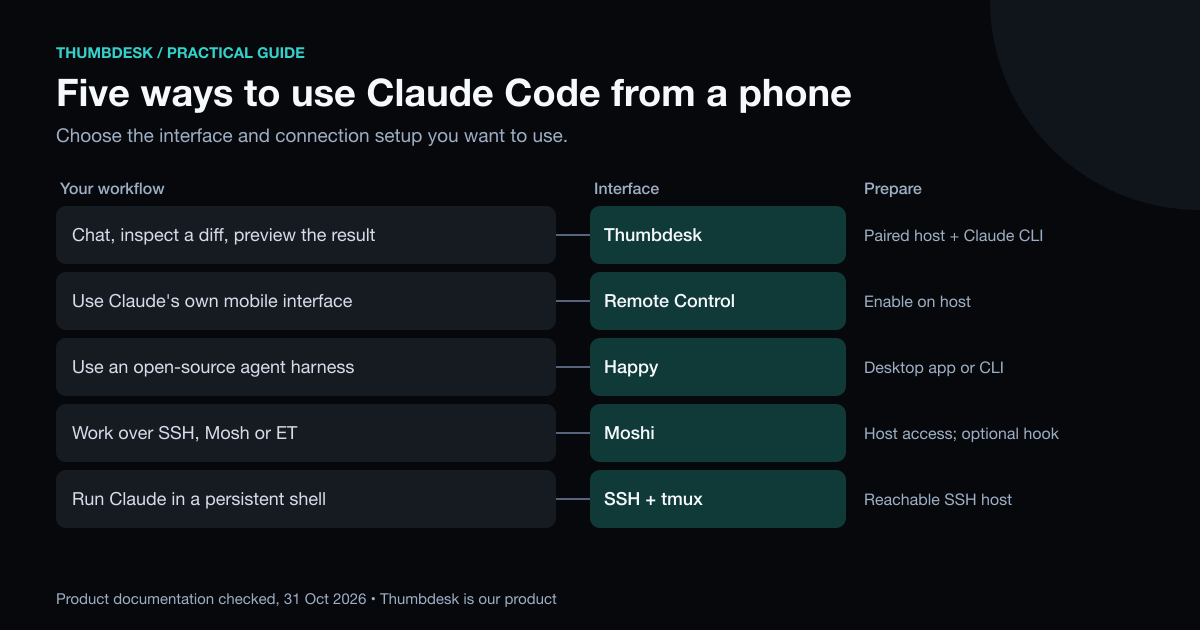
The choice comes down to the interface you want and how you already connect to the computer.
| Approach | How you use it | Setup to consider |
|---|---|---|
| Thumbdesk | Agent chat, saved sessions, terminal and project tools in one phone app | Pair a host with Claude Code installed and signed in |
| Anthropic Remote Control | Continue local Claude Code through the Claude app or browser | Enable Remote Control on the host; check subscription eligibility |
| Happy | Control agents through its mobile app and desktop app or CLI | Install Happy on the computer running the agents |
| Moshi | Use SSH, Mosh or ET, with agent views through moshi-hook | Configure host access; add the hook for structured agent features |
| SSH with tmux | Run Claude Code in a remote terminal | Configure SSH access and a persistent session |
Anthropic Remote Control#
Remote Control connects a local Claude Code session to the Claude app or claude.ai/code. Start it with claude remote-control, or enable it for an interactive session with /remote-control. Anthropic also documents automatic connection for future sessions. The computer and Claude process must remain available; eligibility depends on your Claude subscription and organisation settings.
Happy and Moshi#
Happy offers a free, open-source agent harness with a mobile app. Its current desktop app and older CLI are separate setup options. Moshi connects through SSH, Mosh or ET; moshi-hook adds structured agent views, diffs and previews. Compare these if their agent interfaces or your existing terminal setup match how you work.
SSH with tmux#
If you already have SSH access, run Claude Code inside a persistent terminal session:
tmux new -A -s claude
claude
Reconnect to the same tmux session after a drop. Our session persistence guide explains the setup.
Accounts, privacy and the free plan#
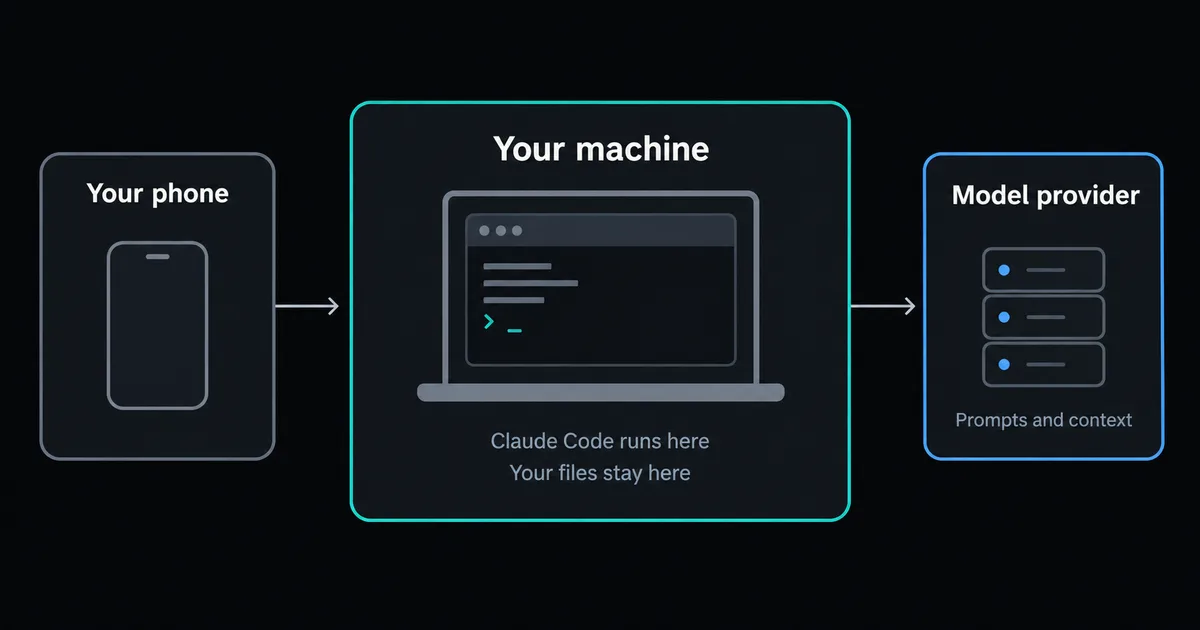
Thumbdesk uses Claude Code installed and authenticated on your host. Your existing provider access and usage limits still apply. Claude sends prompts and relevant code context to its provider, just as it does when used at your desk.
With current host agents, Thumbdesk agent chat is encrypted end to end. Terminal connections use WebRTC directly or through TURN; a separate signaling-terminal fallback is protected by TLS but readable by our application relay. The security architecture explains the paths and host verification.
Free includes two hosts and access to the latest ten agent sessions, plus terminal, files and live stats. Screen sharing has a two-minute-per-hour allowance. See pricing for the remaining limits and Pro options.
Download Thumbdesk, pair the computer where Claude Code is ready to use, and try a small task in a project you know. For Codex on the same machines, see our Codex guide.
Questions people ask#
Can I start a Claude Code session from my phone?#
Yes. In Thumbdesk, open Chats, choose Claude Code and a project folder, and send the task. The CLI must be installed and authenticated on the available host. Anthropic Remote Control also documents starting work through its host-side server mode; that is separate from exposing an existing interactive session.
Does this work with Claude Pro or an API key?#
Thumbdesk uses the Claude Code authentication already configured on your computer; it does not include a Claude subscription or model credits. Anthropic Remote Control has its own subscription eligibility and authentication requirements. Check the Remote Control documentation for your plan instead of assuming the two connection methods have identical requirements.
Can I also use Codex?#
Yes. Thumbdesk supports Claude Code, Codex and Grok when their CLIs are installed and configured on the host. Choose the agent when starting a chat. Anthropic Remote Control is specific to Claude Code; the Codex guide covers the other workflows.
Is my code sent to a cloud?#
Claude Code sends prompts and relevant context to its model provider even when the commands run on your computer. Thumbdesk's current agent chat is encrypted end to end between phone and host. Terminal traffic has a separate TLS-protected, server-readable fallback, explained on the security page. Consider both the phone-to-host connection and the coding agent's model requests.
Product details were checked against the app and host implementation. External descriptions use the vendors' linked documentation, checked on 31 October 2026. See our methodology and corrections.
Figures in this post were read on 31 October 2026 and may have changed since.