Save and resume a workspace across your computers
Keep terminal, files and web-preview tabs from multiple hosts together in a Thumbdesk workspace. Resume the arrangement and understand session persistence.

Founder, Thumbdesk · 3 min read
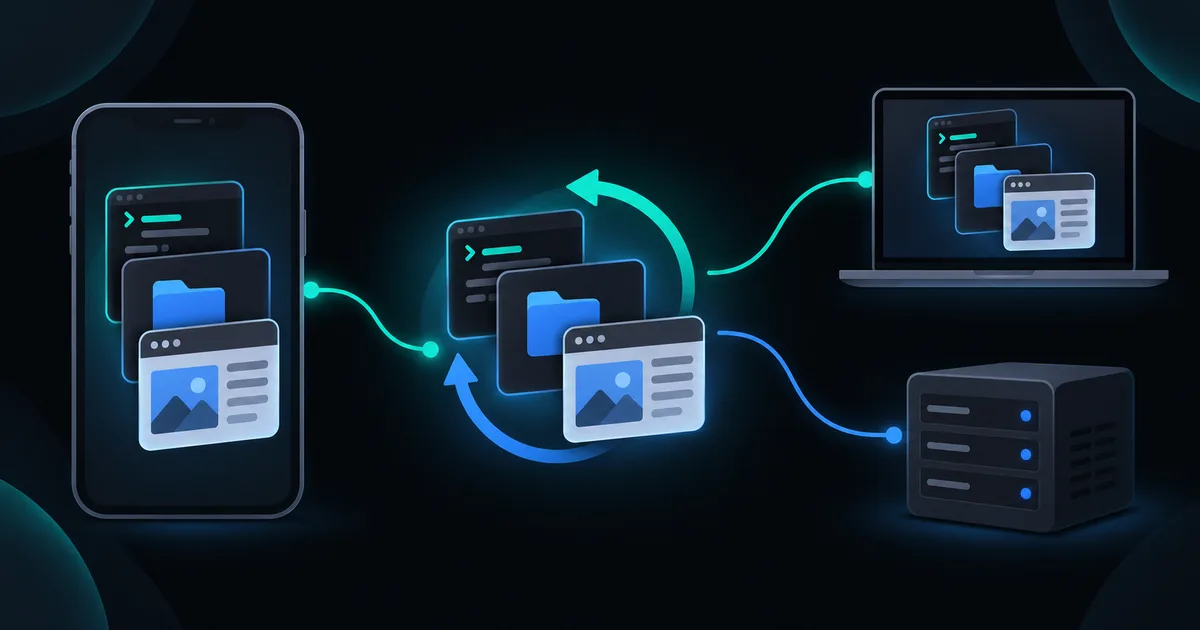
Interactive example
Build a saved workspace
Arrange sample terminal, files and preview tabs. Resuming restores the tab arrangement, while host availability still matters.
Add tabs from two hosts, leave the workspace, then resume it.
Sessions
WORKSPACES
Save terminals and files from several hosts together.
Open Workspace 1. Add tabs, switch between hosts, then return to Sessions and resume the arrangement.
Saved arrangement: 1 terminal
Sample tabs are kept for this example until reset. A real workspace saves an arrangement; terminal persistence and host availability are separate.
Sample data only. You can use the controls yourself; automatic playback pauses when you interact. The steps below also work as a text guide.
TL;DR: A Thumbdesk workspace keeps terminal, Files and Web preview tabs together, including tabs from different hosts. Open it from Sessions to return to that arrangement instead of rebuilding it for each visit. Use a project space for one repository's Code, Terminal, Chats and Git views; use a workspace for the set of tools and computers you want side by side. We build Thumbdesk; this guide shows the distinction and how to resume useful work.
Save and resume a workspace#
Suppose you develop on a Mac and check a service on a VPS. You might want a terminal on the Mac, a Files tab on the VPS and a preview of the Mac's dev server. A workspace groups those tabs without requiring them all to belong to one computer.
The interactive example starts with Workspace 1. Resume it, add a Files tab on hvps and a preview on mac-mini, then return to Sessions. The saved row reflects the arrangement you made. Resume it again and switch between the tabs.
Create the arrangement in the app#
- Open Sessions and use New or the Workspaces section's new action.
- Choose the first tab type: Terminal, Files or Web preview.
- Select a host and the starting folder where offered.
- Add the other tabs you need from the workspace's new-tab control.
- Return to Sessions and check the workspace row before resuming it.
The workspace's saved tabs describe where you want to work. Changes to that arrangement are saved through the app. Closing a tab changes the arrangement; leaving the workspace view is different from explicitly closing the underlying session.
Choose folders that make the purpose clear. A terminal at the project root and a Files tab at the relevant service folder are more useful than several indistinguishable tabs at the home directory.
Choose a project space when the repository is the focus#
A project space is organised around a folder on one host. It brings together Code, Terminal, Chats and Git. Its recent-project entry helps you reopen a repository and its related work.
A workspace is organised around tabs and can span hosts. It is useful when the task involves several machines, or when you want Files and a web preview alongside a terminal.
You can use both: open a project to review a change, and keep a cross-host workspace for the development and operations tools you use around it. The Git guide explains reviewing the repository itself.
What resumes and what needs reconnecting?#
| Part | What to expect |
|---|---|
| Saved tab arrangement | Returns to the hosts, folders and tab types saved in the workspace |
| Agent-managed terminal | Can reconnect to a session surviving a phone disconnect |
| SSH terminal | Persistence depends on the SSH/tmux setup |
| Web preview | Needs the host agent, an allowed port and a running dev server |
| Offline host | Its tab cannot execute work until the host is reachable |
A workspace is not a backup of the computers' running processes. A host reboot can end a terminal or dev server even though its tab arrangement is still saved. Check the session state when you return.
Keep it useful#
Remove tabs you no longer need and check the host labels before typing a command. Use the app's workspace-delete action only when you intend to remove that saved arrangement; read its confirmation separately from any terminal close action.
For a preview tab, follow opening localhost from your phone. For persistent command-line work, read keeping terminal sessions alive. The pricing page explains the separate project-space and other plan limits.